

How-To Guide › Getting started
Create your business account with WorkPair
Set up EnemoAi for your business with your verified WorkPair ID. Your first month is free.
Who it's for
The owner or an admin of a business that is verified on WorkPair.
What you need first
- A WorkPair ID that is identity-verified.
- Owner or admin role in your business's organization on WorkPair, and the organization itself verified there.
- An EnemoAi invite code (EnemoAi is opening to businesses in stages).
Screenshots use demo data and fictional companies.
Steps
Go to enemo.ai. Under New to EnemoAi? Set up your business, check the three requirements.
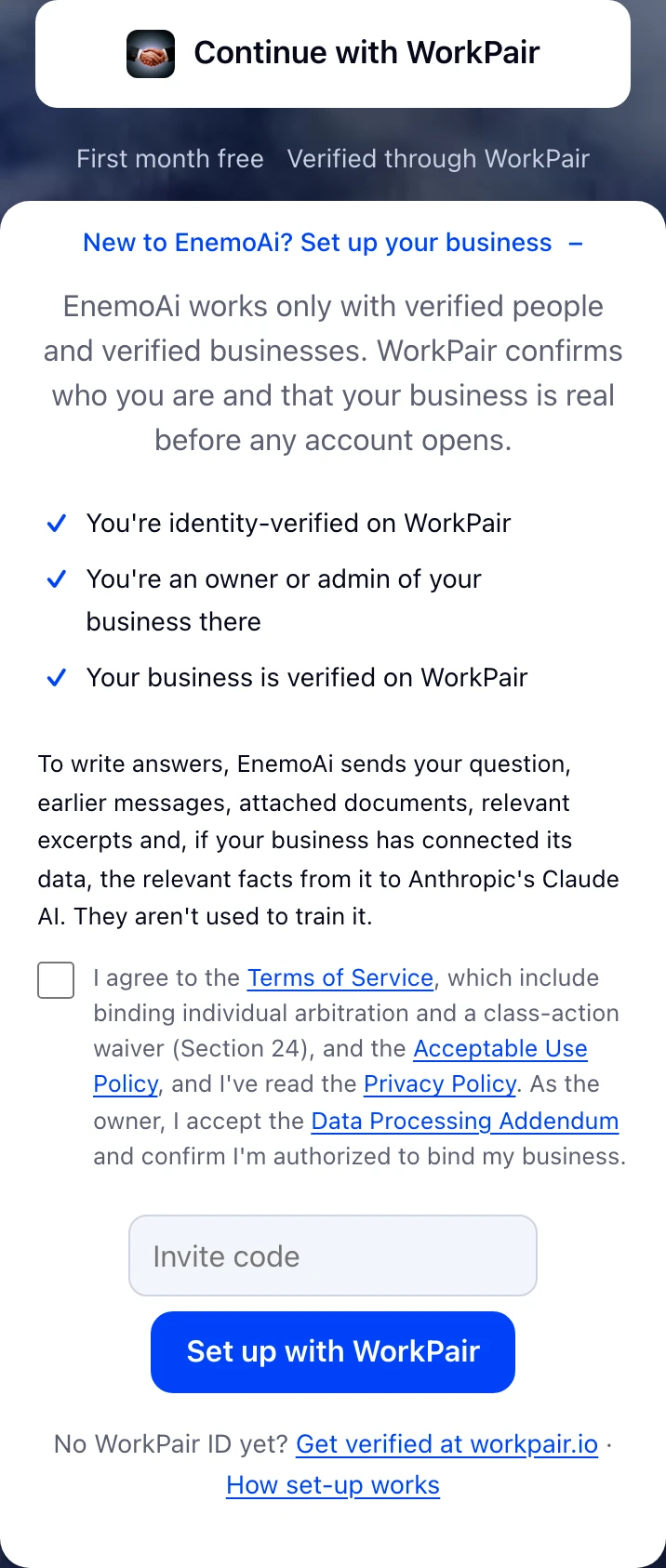
Read the Terms of Service, Acceptable Use Policy, Privacy Policy and Data Processing Addendum (linked in the box), then tick the box. As the owner you confirm you're authorized to bind the business.
Type your invite code and choose Set up with WorkPair.
WorkPair asks you to sign in and confirms who you are and that your business is verified. It then sends you straight back to EnemoAi.
What happens next
Your business account opens with your company's details from WorkPair, and your free month starts (see Free month). You land on Mentor, ready to ask. You can invite your team from Account → Team. That group starts closed: open it with its arrow.
Common problems
- “Tick the box to accept…”
- Setting up needs the legal box ticked first. Tick it and choose Set up with WorkPair again.
- WorkPair is unavailable
- EnemoAi can't sign anyone in while WorkPair is down, and there is no password to fall back to. Try again in a few minutes.
- My business isn't verified yet
- Finish verification on workpair.io, then come back.
- I'm a member, not an owner or admin
- Ask your business's owner to set up EnemoAi and invite you by your WorkPair ID.