

How-To Guide › Getting started
Invite a team member, and how they accept
Invite people by their WorkPair ID. There's no seat fee; everyone asks from the company wallet.
Who it's for
Owners (can invite admins and members) and admins (can invite members).
What you need first
- The person's WorkPair ID: 13 letters and numbers, shown in their WorkPair app.
- They must be a member of your business's organization on WorkPair.
Screenshots use demo data and fictional companies.
Steps
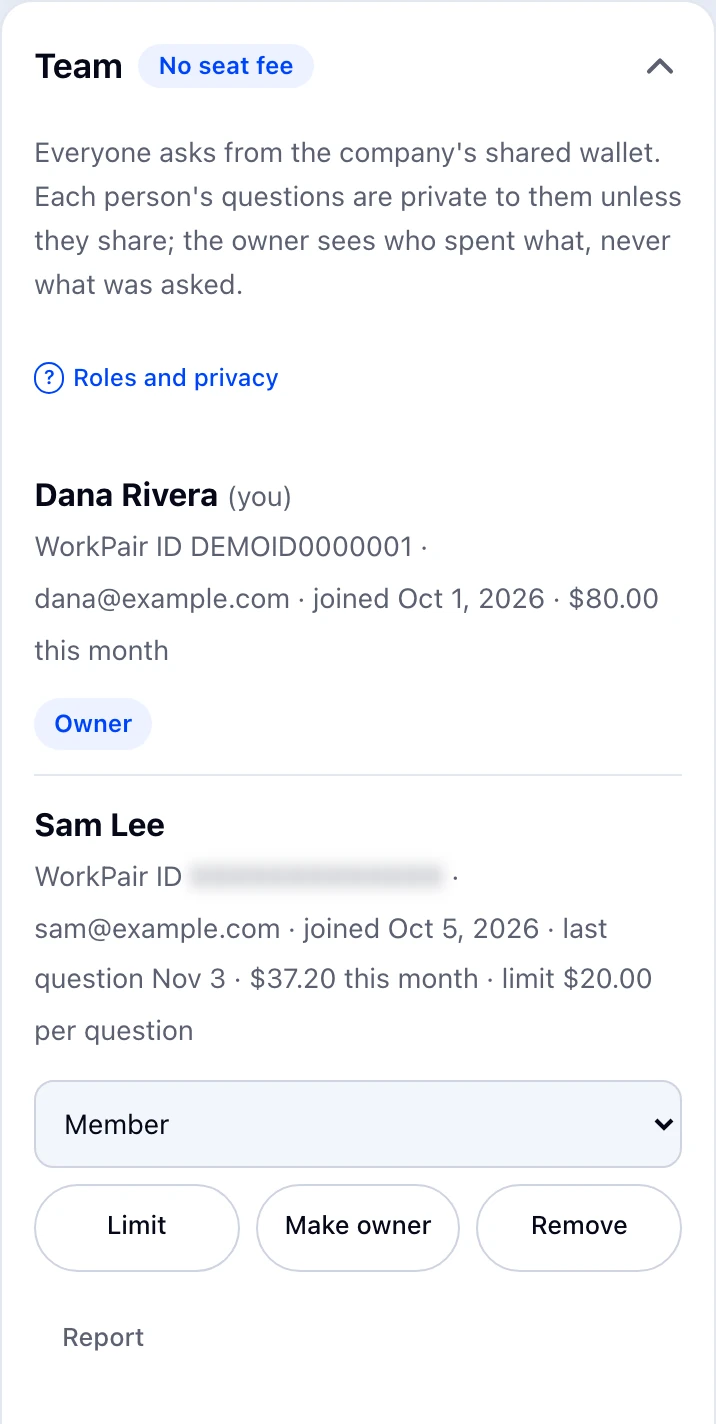
Open Account (your initials, top right) and scroll to Team. That group starts closed: open it with its arrow.
Under Invite someone, enter their WorkPair ID, choose a role, and optionally a per-question spending limit.
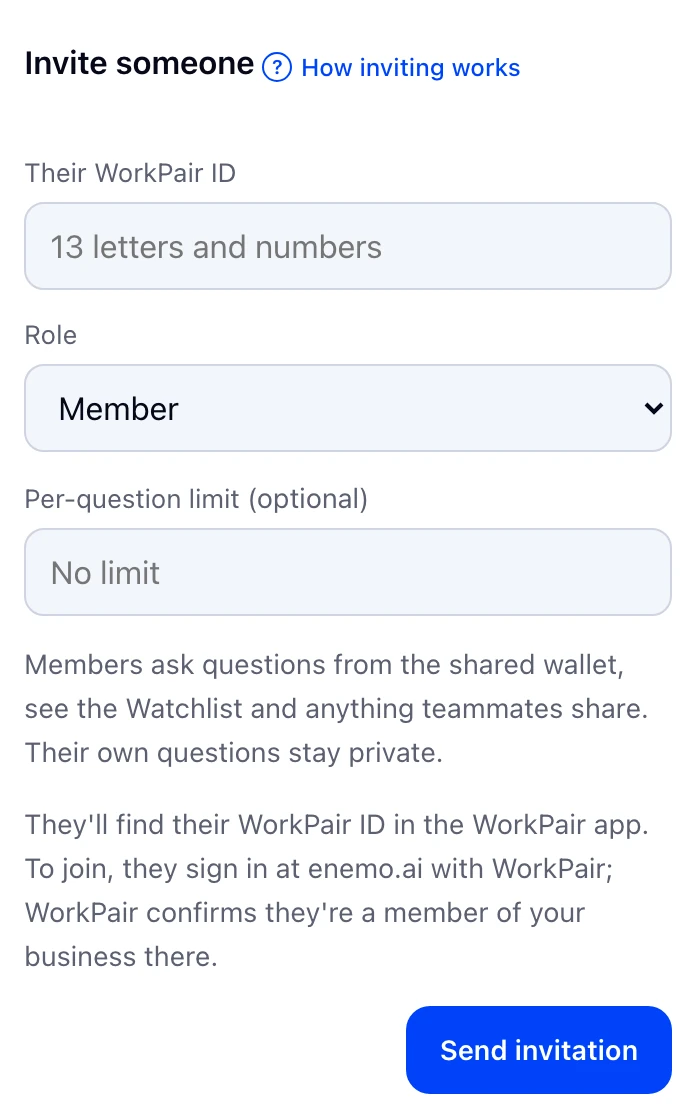
Choose Send invitation. You can also copy an invitation link to send them.
How the person you invite accepts
They go to enemo.ai and choose Continue with WorkPair; WorkPair confirms they're a member of your business, and they're taken straight in.
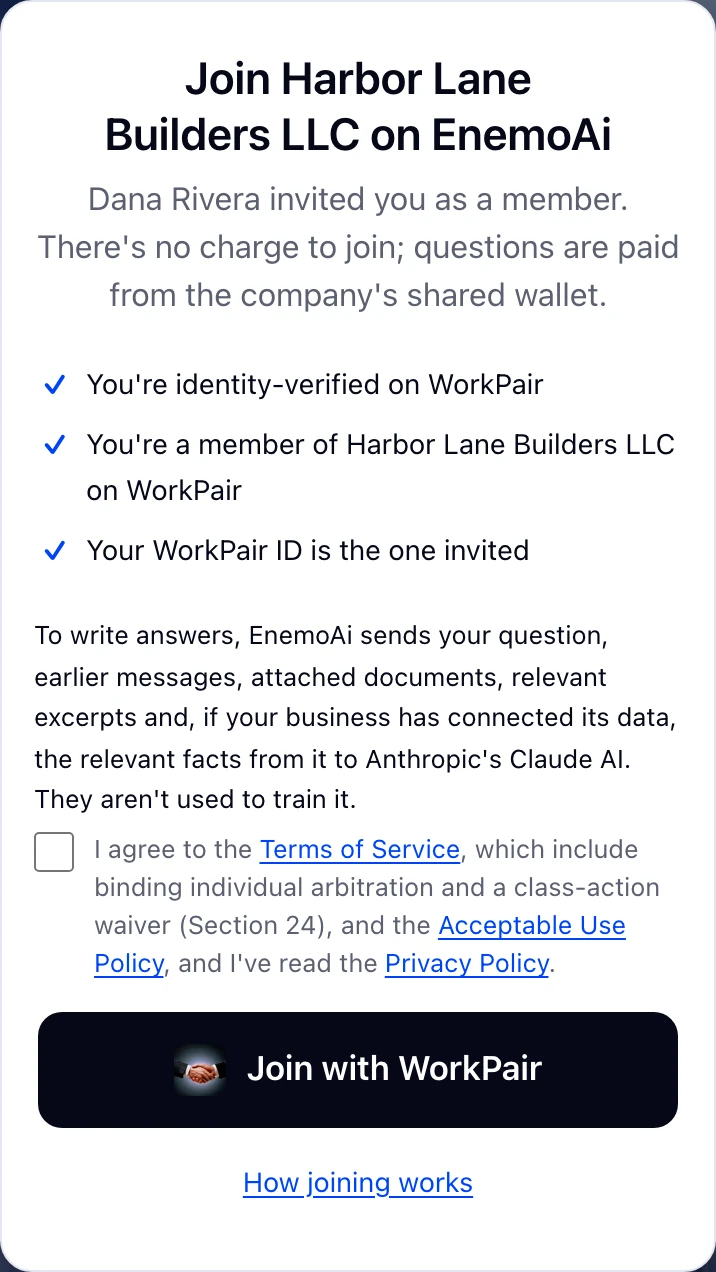
Or they open the invitation link, tick the box to accept the Terms of Service and policies, and choose Join with WorkPair.
What happens next
They appear in your Team list. Invitations expire after 7 days; a new invitation to the same person replaces the old one, and you can withdraw one that's waiting. A business can have up to 200 people.
Common problems
- “Enter their WorkPair ID”
- Use the 13-character WorkPair ID from their WorkPair app, not their email.
- They can't join
- WorkPair must show them as a member of your business there. Add them to your organization on WorkPair first.
- I can't invite an admin
- Only the owner can invite or make admins.
- Asked to sign in again
- Team changes need a recent WorkPair sign-in. Confirm and you come straight back.